Showing posts with label Computers. Show all posts

Friday, March 29, 2024

Guest Post: End of Life for Windows 10

 by George Groot


George is a member of our Facebook Group and has written for us before. 


For those who aren’t in the know, Microsoft will end support for Windows 10 on October 15, 2025. This is not something to be afraid of; operating systems and other software generally have a limited shelf life, and Windows 10 will join Windows 8, 7, XP, 2000, Millennium Edition, 98, various NTs, 95, and 3.1 and earlier as unsupported.  

But first, let me ask the rhetorical question Why do we need a modern operating system that's as secure as possible? Answer: Because the internet is a horrible place. For all the good that a great global network of constantly-on communications devices and computers has done for economic uplift, it has also created new risks to people’s livelihoods, life savings, and mental health.

The good news in all this is that Microsoft isn’t requiring too much in the way of expensive hardware to get a machine certified to run Windows 11. Basically, any Intel Core series with an 8000 or higher number, or an AMD Ryzen with a 2000 or higher number will do. However, if you're using a computer older than 2nd Gen Ryzen or 8th Gen Intel, you should know that while there are plenty of people out there who have managed to load Windows 11 on hardware well into the “Core 2Duo” era, they have really only done so to see if they could. If you're absolutely married to your current hardware and you have the tech chops to be your own IT department, this is an option, albeit one that I don’t recommend. 
 
A better option is purchasing newer hardware on the Microsoft approved list. If you aren't a tech person, there are companies that purchase “off warranty” corporate IT gear and refurbish it for the market. My normal place to purchase a refurbished computer is Newegg.com, and so what follows is current as of the time of this article's publication:

Desktops
An Intel Core i5-8500T refurbished business desktop already loaded with Win 11 Pro can be had for under $200 US at Newegg. If that’s your budget and you're fine with a basic web browsing and productivity software suite box, that’s probably the best option for people who are not very tech oriented. 

Laptops
Unfortunately for mobile users, Windows 11 laptops that are affordable (under the $200 mark) are on the underpowered side, using Celeron and Pentium processors with a small amount of RAM. These budget laptops will work for basic email, web browsing, and streaming media, but they lack significant onboard storage. 

TPM 2.0
Another option is if you're running hardware on the approved list, but somehow your system fails the Microsoft Windows 11 upgrade health check. Generally this is due to a lack of a TPM 2.0, or Trusted Platform Module, on the motherboard. Depending on your motherboard you may be able to purchase a TPM 2.0 module and plug it in, but buyer beware! Some manufacturers use a 12 pin, some 14, and some 20 pin modules, so be sure of what you need before you purchase. Once the TPM is installed, Windows 11 can make use of that hardware to perform whole drive encryption to help secure your system and data.

Linux
The desktop-oriented Linux distributions of today are much easier to use than they were when I first started playing around with Slackware Linux in the late 1990s. If you know nothing about Linux, an easy choice is Linux Mint, which is a derivative of Ubuntu which is downstream from Debian. Debian is a free operating system that is community-supported, whereas Ubuntu is a “corporate Linux distribution” supported by Canonical. This means Mint benefits from both crowdsourced bug fixes and improvements from Debian, as well as corporate security updates and “polish” from Canonical.

While Linux is much more user-friendly than it used to be, it’s still rather picky about who it's friends with. If you have a basic computer with integrated graphics from AMD or Intel, there should be no issues with graphics drivers, but if you have an Nvidia graphics card then Linux can be dicey right now. If all you need is a machine to surf the web, send/receive email, maybe play a few retro-games on an emulator, Linux is great. 

Notice I didn’t mention “streaming” there, as most streaming platforms aren't Linux friendly due to proprietary Digital Rights Management (DRM) software. If nothing else, you can load Linux on a legacy PC and set it up as a Network Attached Storage (NAS) file server to make your own network-attached storage appliance.

My Plan
I plan to go Windows 11 for my wife and two sons' desktops if I can get TPM modules that work for their motherboards, and also purchase my wife a Windows 11 laptop. My wife’s old desktop and laptop will have their files backed up to our NAS and migrated to the new machine. My “beater laptops” (refurbished government computers with built-in CAC smart card readers) will likely end up running Ubuntu since that is the desktop distribution most common where I work.

Erin had to ask me to clarify a lot of this, so if you need things explained please leave a comment and I'll help as best I can. 

Tuesday, May 30, 2023

Data Recovery

Not actually Erin.
& is used with permission.

Dear readers, if you can't recall the last time you backed up your computer, do it now. (Ask me how I know this.)

If you've never backed up your computer before, or don't have the hardware to do it, I suggest you go to Walmart and get the PNY Complete SSD Upgrade Kit in either 500 Gb or 1 Tb, depending on the size of your computer's main hard drive, and clone your drive. The bundled Acronis True Image software is almost criminally easy to use:
  1. Download and install the software, using the registration number included in the kit. 
  2. Plug the cable into the SSD and then into your computer's USB port. 
  3. Run the software. 

https://www.walmart.com/ip/PNY-500GB-2-5-SATA-III-SSD-Upgrade-Kit-with-Transfer-Cable-and-Software/172976564

It is that easy. The software handles everything else for you, including the incredibly annoying disk partitioning (and if you've never had to do that, consider yourself lucky), and when it's done you have a bootable solid state drive that contains a perfect copy of your original drive in about 2-3 hours. Once you get it started you can let it do its business as you go on about yours (just so long as your computer doesn't go into hibernation while you're away). 

SSD vs. HDD: What are they?
Put simply, a Hard Disk Drive (HDD) is mechanical, with a motor that spins the hard disk to read and write data. A Solid State Drive (SSD) is purely electronic in operation, much like a thumb drive. Because it has no moving parts it is faster, more forgiving of movement while operating, and hopefully lasts longer than an HDD. 

Unfortunately, I hadn't backed up the HDD of my computer since I bought it in November 2020. Now in my defense, I had frequently backed up the data I had by copying that data to other drives, but I neglected to back up Windows itself. This oversight came back to bite me last weekend when my computer slowed to a crawl and then refused to boot. 

One new computer later (it cost about as much as a new pistol... sigh), I plugged the old HDD into to new computer and while Windows saw the old drive, it wouldn't let me access it due to, and I quote, "The disk structure is corrupted and unreadable."

The good news in all this is that Windows was able to see the drive, which meant it could be accessed with the proper program. In this case that program is the EaseUS Data Recovery Wizard Pro, which can be downloaded for free to see if the program works. It did, so I shelled out the $70 year-long license (ouch) and set about recovering my data. 

The process was long, because it scanned my drive three times using different recovery methods to maximize the chance of recovery. This triples the amount of data I have to sift through, and since I had nearly 1Tb of data on that drive, that means I have nearly 3Tb of data to sort through. Fortunately there were things which I could ignore, such as the entire OS and all the data I knew I'd backed up (such as my folder of mp3 music). This still left me with a lot to sift through, and not a lot of free time for that sort of thing. 

At this point I've reinstalled all the programs I had (except for maybe a couple of games), and the only data which I haven't been able to recover is copied onto a thumb drive I have around here... somewhere... and hopefully I'll find that before I need it. I've copied the pictures and documents from the old drive to my new one (which I now keep backed up with my PNY) and will sort through those whenever I have a spare moment. The misbehaving HDD will be kept for a while, just in case I remember something I needed which I didn't copy over, and hopefully it will still work at that time. My thinking here is that if I can't remember something I had on the old drive within the next month or so, I probably didn't need it, and so when the drive finally dies I will either have gotten everything from it that I wanted or decided that whatever is left isn't worth the effort to recover. 

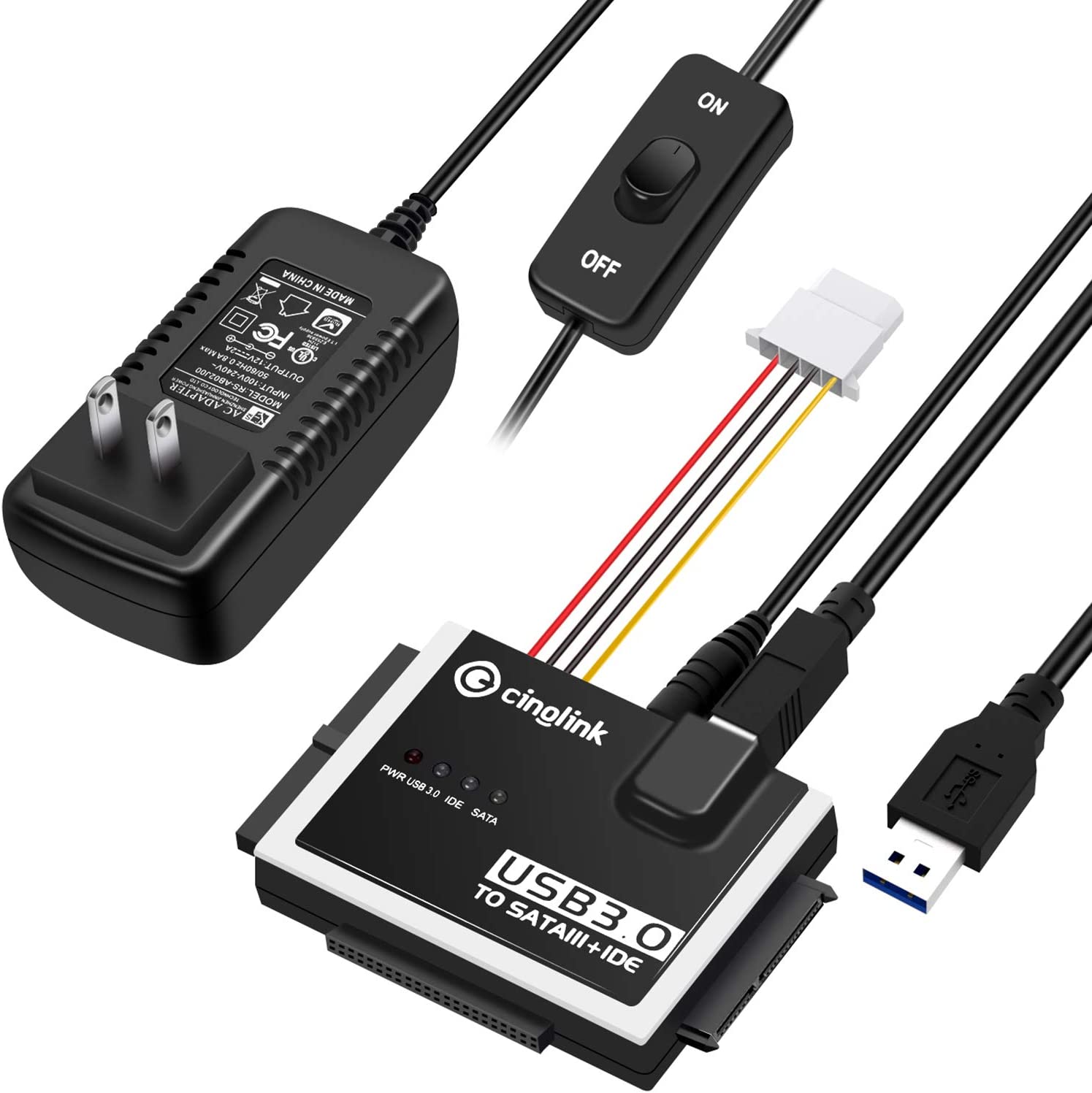
By the way, if you don't own something like this SATA IDE to USB 3.0 Adapter, you should get it. I've found it incredibly useful lately; not only does it run the old HDD for recovery operations, but I also use it to power my formerly-internal-but-now-external DVD drive because this new computer didn't have space to mount said DVD drive. 

https://amzn.to/42dLjwy

Please, don't be foolish like I was. Let my pain be a lesson to you all, and back up your OS. It's far better to pay tens of dollars now to clone your drive than to lose that drive and spend hundreds of dollars getting a new computer*.


* I couldn't just reinstall the OS with a new drive because my old computer did not come with a copy of Windows on CD-ROM. Furthermore, the old computer ran Windows 10, which I couldn't find in stores, and lacked the ability to run Windows 11. So my choices were "Spend money to get up and running now, so that I can do my job" or "Try to find what I need online, wait for them to arrive, and hope like heck I can get it to work". I may have made a foolish decision, but I'm not convinced I made the wrong one; the true foolishness was in not backing up my OS. 

Besides, this new computer is very nice and I'm quite happy with it. Which is good, considering what it cost. 

Tuesday, July 5, 2022

Back That [Data] Up

This is going to be a shorter than usual post for reasons that will soon become apparent.

Last week, while working on a project, my computer crashed. This isn’t anything special; many people have experienced something similar. What was different was when I restarted the computer, the Power On Self Test (POST) reported an impending hard drive failure. Not good!

I make it a habit to back up my files, images, and downloads on a regular basis. Before a trip out of town, I do a full system backup on two different external drives, and one comes with me while the other is left in my safe. I’m not a fan of cloud storage, because if I don’t have access to the server it’s stored on, it’s no longer my data.

Even though I worked in IT for over thirty years, I’ve been out of the field since about 2018. Things change in IT, and they change quickly, so my knowledge of available storage options was outdated. I’ve been using traditional magnetic platter-style hard drives since the mid-1980s.
      

However, times and technology change. Solid State drives have come a long way over the last decade; capacity has gone up and cost has gone down. Thanks to some good friends, I was able to select a new 2 Terabyte SSD that's on it's way to me right now, and if necessary, I’ll get an old-style magnetic platter drive for extra storage.

My new drive should arrive tomorrow, and after I get home from work my real labor will begin: installing Windows, applications, and restoring backed up files.

For those who value their data -- which should be everyone -- make sure you have a backup plan in place and make sure it’s followed.

Thursday, December 13, 2018

Computer Disasters and Recovery

Three and a half years ago, I wrote an article about prepping for an upgrade to Window 10. It's still relevant, because there are still people using earlier versions of Windows, but I need to expand on having a “Live CD/USB” on hand before starting.

Most laptops and desktops sold today run some flavor of Windows. I can hear the Apple fans winding up in the background, but I am going to ignore them for one very good reason: I have no experience working with Apple products. I'm not going to try to give advice on something I know nothing about, so if you run anything with a Macintosh OS, you'll have to look elsewhere. Proprietary hardware tends to require specialist repair, so I stick with what is readily available and somewhat open-source.

I am the default IT tech for most of my family and a few close friends. I'm not a computer expert -- I have no schooling or certifications to put on a resume -- but I've been working with them since the days of punch-cards. I've built most of my own desktops over the last 30 years, and have learned a lot through research and by making mistakes. Upgrading the operating system (OS) used to be something that had to be done every two or three years, so I've had plenty of practice.

Repairing or restoring computers has been a puzzle that I've mostly enjoyed for quite a few years, and one of my most important tools is a “Live CD”. This is a method of repairing (or at least accessing) the software on your computer, and will not work if the hardware has been damaged. A PC with an intact hard drive can be salvaged by installing the drive in an external enclosure, but the possibility of a broken hard drive is the reason we have to back up our data.

(Sorry, but the tools and techniques for recovering data from a broken hard drive are way beyond a blue-collar budget. That is a specialist service reserved for governments and corporations with large budgets.)

Windows 10 is a fairly stable OS after three years of tweaks and updates. I know it has problems -- name something in this world that doesn't -- and a few of those problems can keep your PC from running. Viruses and malware are the main issues, but once in a while you'll find a corrupted file or two that will shut everything down and lock you out of your important files. Since I'm writing this on a PC and you're likely reading it on one, we can agree that they have become an important part of our daily lives. We can survive without them, but they usually make life easier and allow us to store huge amounts of information in a very small space. If you have your important data or documents stored on a computer and it locks up for some reason, here's one method to try to get them back.

Live or Rescue CD
A “Live” CD or USB stick will contain a complete OS capable of being run from the CD/USB. You don't need to install anything; just insert the media and boot up your PC. Most computers made in the last ten years or so will try to boot (start) from the CD/USB before trying the hard drive. If not, you'll need to interrupt the startup sequence by pressing F8 or the Delete key right after you hit the power button. You may have to hit that key repeatedly just to make sure you send the interrupt signal at the correct time.

Once you see a screen like the first picture below, you'll have to scroll through the options in the Basic Input/Output System (BIOS) to set the “boot sequence” to try to start from the CD/USB first. An example is shown in the second picture. The BIOS is software that is installed on the main board of your PC at the factory. There are several different BIOS types, but they will all have the same basic options. Follow the prompts to save the changes and restart your PC with the Live CD in the drive.

https://commons.wikimedia.org/wiki/File:Award_BIOS_setup_utility.png

https://commons.wikimedia.org/wiki/File:Bios-configuracion-orden-arranque.png

Once your computer reboots using the Live CD/USB, you'll have a very small operating system that will allow you some access to your files. You can use this chance to back them up to another drive or attempt to repair your original OS if that is an option.

Which Live/Rescue CD should I choose?
Almost all of them run some flavor of Linux, a free OS that has been around for many years. It's free because most of the development is “open-source”, meaning that it's done for free by enthusiasts and not a corporation. Updates are tracked on free websites, and there are several equally good version out there. There are issues like lack of drivers for new software until someone gets around to making them, which keeps most non-geeks from using Linux, but it is also hard to write viruses and malware that will work which means it's more secure.

I have several copies laying around for differing uses. Here are my top picks:

A very powerful toolbox full of programs that will let you access and repair most software problems. I've used this one several time to restore laptops that were  dropped and had bad portions of their hard drives.

This one has been around since the days of floppy drives, and it still works. If you see someone on eBay selling a rescue CD, they have probably just burned a copy of this free utility and are charging for someone else's work.

For when you want to access a computer but don't have the password, or you don't want to leave any traces of your activities. This one is a hacker's friend, because it will let you into a locked computer once you've learned how to use it, but it also has ethical uses like accessing computers locked by ransomware. This one is for advanced users due to some of the anonymity features.

This is a complete replacement for Windows, but will run from a USB stick and let you into your files. I've run several computers on Ubuntu over the years, and it was the OS I installed on the laptop I gave my 75 year-old completely computer-illiterate mother. She couldn't screw it up in 5 years of trying, so it's safe to say it's a stable, secure system.


As we've written before, always back up your important data, but if you lose access to your files and haven't done a recent backup, one of these tools may help. They're free, so it costs no more than what you will pay for the CD or USB stick to store it on and it's always nice to have more tools around. My main problem is finding where I put the blasted CD, so I end up downloading it again for every job.

Thursday, August 23, 2018

Cheap Data Backup

We've all been there: the computer freezes up one last time and won't reboot. All of your digital work, photos, and contacts are on that computer, and now it's dead.
If you're serious about your digital efforts you have some form of backup, such as an online storage account (commonly referred to as “the cloud”), an external hard drive, or you burn copies to a thumb drive and store it somewhere safe.

If you don't have your work backed up, the friendly people at the computer store will gladly take a lot of your money to try to recover it without guaranteeing that they will be able to get it (and they'll likely make a copy of what they do find for their own purposes).

Online Storage
Storing files in the cloud is simply putting them on someone else's computer, and so you're going to need internet access to that other computer to retrieve your data. Make sure your data is encrypted on both ends of the transfer to keep nosy people out of your business. The big data companies have a dismal track record when it comes to respecting privacy. Just remember: if it's a free service,  you're the product, not the customer. 

Burn It to Local (Hard) Storage
In the old days, we used CD/DVD media to store important documents, but it's getting to the point where those are obsolete due to optical drives being not as common as they once were. I still have 3.5" and 5.25" floppy drives on my shelf, but I doubt I could make any of them work with a newer computer. Fortunately,  USB seems to be fairly stable and a thumb drive is a cheap way to store a lot in a small space.

External Drives
External drives are fairly cheap, usually under $100 for a decent size. They use the same hard drives (HD) as a computer, so they have the same potential for failure, but they don't have all of the other parts that can cause a computer to fail. This opens up a few options if your computer dies.

As long as the computer died of something other than a HD failure, your files are still there and easy to extract onto another computer. External drive enclosures are a cheap way to take a stab at recovering the files from a dead computer. If you can properly field-strip a weapon and get it back together with no left over parts, you can handle this.

If you're working on a laptop, it'll likely have a physically small (1.8 or 2.5 inch) hard drive hidden under a panel on the bottom; most of mine are accessible by removing a couple of screws and popping the panel off. Removing the drive is usually simple, usually held in place with a screw or a bracket that is screwed to the motherboard. The cable should be a standard SATA (Serial ATA) cable if it's less than 10 years old. You'll need to buy somethinglike this and follow the instructions for installing the hard drive in the new enclosure. Plug it into a USB port, and as long as the HD is good your files are there for you to play with again. After you save your digital work, you now have an extra external HD to use for redundant backup.

Desktop or tower computers can use larger (3.5 inch) drives and will require a different adapter. They also require more poser than you can get through a USB cable, so most come with their own power supply. If you're moving the files to another desktop computer, you may be able to simply plug the old drive into a spare plug on the wiring harness that goes to the new computer's HD (a lot depends on the age of your equipment), but this is an option best left to someone familiar with the internals of a computer. The simple method is to buy something like this and plug the HD from the dead computer into the adapter and then plug the adapter into your new computer's USB port. Removing the HD is simple, usually a connector or two and a few screws. If the old HD is still working, it will show up as an external drive and all of your files will be there for you to transfer.


Don't be afraid to play with a dead computer! It's not like you're going to kill it any worse. I've picked up broken laptops cheap or free because the screen was broken and gotten a good HD to use as external storage out of them.

Back up your data, and try to have redundant storage for the really important stuff.

Saturday, September 10, 2016

Guest Post: Virtualization for Legacy Systems

by George Groot
George is a member of our Facebook Group and has written for us before.

So much critical infrastructure is running off of outdated computer software and hardware that it isn’t funny. In fact, it's a serious problem. But the first rule of government infrastructure is “If it’s working, don’t break it”, which explains why ancient UNIX servers from now-defunct companies are still hanging about the IT cabinets of agencies all across the USA.


How this affects you:
  • Did you spring for an IP-based surveillance system? 
  • Did it come with software from the manufacturer? 
  • Are you willing to bet that software updates and patches won't stop coming any time soon?
If you answered Yes, Yes, and No, here's how you keep your home surveillance system up and running while minimizing your cyber security risks.

Using Virtual Machines
It isn’t a perfect solution, but it is a common way to use legacy software to interface with legacy hardware. There are blue collar people in the IT world, too: techs and installers, low-level admins and help desk personnel. Virtualization is generally an "admin" level task (usually white collar), but just like we learn advanced first aid for when there isn't a doctor, we can learn to support ourselves when there isn't a tech support.

I won’t promise you that it is easy, but I will promise you that it is it is do-able and. If you are "time rich" but "money poor", this is essentially a “free” solution to getting more life out of hardware you’ve already paid for.  I make this distinction because your time has a non-zero value to you and others, so if your time is more valuable than simply buying a new system, buy the new system and sell or give away the old system to someone who is willing to make use of your old gear.

If you don’t think that making old electronic devices functional isn’t a useful skill, peruse a bazaar in the less-affluent areas of the Middle East, Eastern Europe, South America or Africa sometime. Simple soldering skills, along with some computer know-how, are actually fairly in-demand skills in the developing world -- which is essentially what any first-world nation will become after an economic collapse.

VirtualBox
First off is the free and easy to use option.  If you started reading this article by asking “What’s virtualization?”, then this is the hypervisor for you (a hypervisor is the bit of technology that creates the environment to run an operating system as an application).

VirtualBox is a full-on graphical user interface (GUI) solution that is free to the normal user who isn’t going to rip it apart and build a competing product for profit, and it runs on Mac, Windows, and Linux.

VirtualBox isn’t perfect; as with all “free” products, the “free” comes with essentially “free” support in the form of forums and sparse documentation, but there are some surprisingly good YouTube videos on how to get started. If you like to learn, you'll be fine. If , however, you are a computer user who "just wants it to work" and has the money, then just buy gear that works -- after all, having a steady upgrade cycle ensures you have decent gear in the event of an emergency.

Hyper-V
If you are a Microsoft fan, the Hyper-V hypervisor is also available. As long as you have licenses for the operating systems you plan to install as virtual appliances, you are good to go, although Hyper-V doesn’t officially support anything older than Windows Vista SP2.

Other Solutions
VMWare, Xen, and KVM are some of the more common virtualizations. But if you just need the basic functionality of a virtual machine to handle some legacy gear, VirtualBox is probably the most approachable for new users.

Closing Thoughts
If you don’t have any legacy hardware you want to support, but have a beloved program that only plays on old Windows 9X (95, 98, 98SE, Me) versions, you can pull that dusty CD out of the drawer, pop it in the drive, load up a virtual machine on your current machine, and run your old program again. But if you do that, do not connect that virtual machine to the internet. Seriously, just don’t. The rate of infection for an unpatched Windows machine on today’s internet is measured in seconds, often with decimal points.

However, virtualization can really tax your hardware. If your current computer doesn’t have at least 4 logical cores (two physical with “hyperthreading” for Intel, or a quad core AMD), then virtualization is probably not a good thing for that particular machine. The good news is that pretty much any processor made since 2009 has hardware level virtualization support and as long as it has a few cores it is good to go.

So there you have it: a way to install the custom software that came with your IP surveillance system that only works on WinXP into your new system for free(ish). Or you can just use it  to play really old PC games again!

Thursday, May 26, 2016

Vacation Time at the BOL

I don't normally take what most people would consider a vacation. The last time I took the family on a vacation was about 15 years ago, and that was a two-week road trip to visit more family. To me, just getting away from the normal day-to-day routine is good enough, but it always seems to come with work attached. I have gotten used to this, and I actually look forward to being able to practice skills that I don't use very often (carpentry, fence-building, tending animals, etc.) when I get the opportunity.

This year my “vacation” will consist of a week of watching the family farm (18+ acres of hills and trees with some pasture) so my Dad can go on a fishing trip. Since the family farm is my primary bugout location (BOL), this will give me a week to inspect, repair, and improve the various pieces of the property that make it a good candidate for a BOL. I will have to work my regular job a few of those days (staffing issues prevent me from taking the whole week off work) so I won't have as much time as I'd like, but I plan on making the most of the time I have.

My tentative plans include:

Check the Perimeter Fencing
Around here, the responsibility for maintaining fences follows the “right-hand rule”: as you look at a fence between your land and a neighbor's, you are responsible for the half of the fence on the right-hand side. Your neighbor is responsible for the other half, which will be on his right-hand as he looks at the same fence from his property. Clearing trees that have fallen on the fence is the biggest part of this job, with replacing the whole thing a close second. Replacing posts and patching barbed wire is a simple job, but getting to the fence can be a challenge in the rolling hills we have.

Update and Improve the Computer Network
I recently switched the farm over to a DSL line from the annoying and expensive dish internet. This saves about $60 a month, and there are no more data caps or speed issues in bad weather. I can understand using the dish internet if that is all that is available, but it has a lot of problems.

I still need to install a new wireless router and do some map work to plan for wider wi-fi coverage. My goal is to have at least minimal wi-fi available for security cameras that can cover the entire acreage. Even without internet access, once the network is set up I will be able to monitor what and who is moving around on the property.

Check and Maintain the Backup Generator
I bought a generator big enough to run one freezer, the refrigerator, and about half of the lights in the house several years ago when we had area flooding threatening the power supply. Mom was diabetic and needed a way to keep her insulin cold, so I bought her a generator. As far as I know it has only been used a few times, and I need to change the oil and make sure it has been stored properly.

Prepare the Area for Fruit Trees
There is a patch of scrub cedar trees that needs to be cleared and replaced with plum trees. Not too far from there is a spot with decent southern exposure that may be cleared for apple and cherry trees, but it is grown up with Prickly Ash saplings. Cedars are easy to cut out, but Prickly Ash is hard to kill; it likes to re-sprout if you don't kill the roots. I may have to invest in some agricultural chemicals capable of doing the job, but first I need to figure out how much space I want to clear.

Repair/reroute the Access Road to the Hilltop
There is a 2 acre flat spot on the top of the major hill, but the road or lane leading up to it is in bad shape; several years of neglect and too much rain have taken their toll on it. I own a surplus M35A2 2.5 ton truck and it can't make it up that road right now. It's time to survey a new route that will avoid the potential for rapid runoff during rainy years, and perhaps try to patch the path we already have. I'm not totally comfortable with only having one way in or out of an area, so I may do both.

Rebuild the Family Shooting Range
One of the valleys has become the family shooting range. With a 60' high hill for a backstop and about 150 yards from side to side, it is sufficient for informal weapons practice. I need to rebuild the target stands, and may lay out space for some permanent shooting benches to be built later. I also need to clean up after a few nephews who don't pick up their trash when they're done and have a talk with them about the paintball obstacles that have recently appeared.

Pest Eradication
Since the house at the farm is in the country, insects and rodents are a constant problem. The cats keep the small rodents at a manageable level, but the spiders and other bugs have gotten out of hand in the garage and (rarely used) basement. 

I have found an insecticide that will kill a wide variety of insects without the odors and hazards normally associated with bug sprays. Being FDA approved for use on food plants, and having a 90-day residual kill, makes this a good option for keeping insects out of a house.

This will be my test run for a future product review of that insecticide.  I'll see how well it works.

Have a Bonfire
One of the nights I am at the farm I will burn a brush pile that has accumulated for the last year. I may invite a friend or two over and sit around the fire drinking a few beers, or I may just sit and watch it burn by myself. 

This has been a rough year for me, losing my Mom, father-in-law, and two aunts within a month. I've also seen three acquaintances buried since Easter, and I think it may be time to sit by a fire and reflect on all of their lives. Some of us need to be around others to mourn, and some of us (like me) need to be alone.

The weatherman is calling for rain most of the week I'll be at the farm, so I guess I'll just have to see how much of my list gets accomplished. Some of it I can do from inside the house, and there are always other things to do to keep me busy if that's what I want.

Thursday, July 30, 2015

Computer Update Prepping

While it may not be a life-or-death problem, updating or upgrading a computer can be a potential disaster for those who earn a living with their digital devices. Microsoft is rolling out their latest (and last?) version of Windows, Win 10, in an almost irreversible update to Win 7/8. There is no rolling back to a previous restore point with this update. This can be troubling to those of us with a lot of data and resources stored on our computers. Here's how I'm prepping for the transition.

By the way: Apple products have had their issues in the past so I don't need to hear about how superior they are to Windows. We don't need to get into that Ford/Chevy, 45APC/9mm debate. If it works for you, be happy and let others find what works for them.

BACK UP YOUR DATA!
If you have data or files that cannot be easily replaced, you'd best have multiple copies of them. Everything electronic is ephemeral, it can be wiped out in an instant. It doesn't take a Solar flare or an EMP weapon to wipe out your data. I've had simple static electricity wipe out SD cards full of vacation pictures and USB drives full of files. My work files are backed up on an external drive and the really important ones are also backed up on a "cloud storage" service. Any disaster that wipes out that many copies is going to be bad enough that I won't be worried about computers for a long time after.

Back up often. and in detail.

Do your research
Going into the Win 10 upgrade, I read a lot of reviews and "expert" opinions about the upgrade.
  • Microsoft (MS) has finally driven a stake through the heart of Internet Explorer, replacing it with a new browser called Edge
  • They have also updated the search function to include voice input (if you have a microphone) and named it Cortana, after a character from the popular Halo video game series. 
  • There has been some discussion about the new Wi-Fi credential sharing option (Wi-Fi Sense). Basically, it defaults to share the login info for all of your networks (passwords are kept invisible) with all of your contacts on Facebook, your email lists, and Skype. This is designed to allow people to "crowd-source" wi-fi hotspots and minimize mobile data usage. Security experts are mixed on the vulnerability of using this feature, but it is easy to disable, which is highly recommended.

Make a recovery disk
Back in the days of Win 95/98 you could boot from a floppy disk. Those days are long gone. With Win7/8 you'll need a USB drive of at least 8GB or a few blank DVD-R disks. I keep a recovery USB for each of my computers in a safe as a backup to the recovery partition on the hard drive. Doing a search on your computer for "Recovery" will give the option to "create a recovery disk" and that should walk you through the procedure.

Set aside a couple of hours
The Win 10 is an option that, once selected, will download in the background. Actually installing it takes about two hours, and your PC will be out of commission during this tome. If you're on a laptop, use the power adapter unless you have a very good battery. Your computer will shutdown and restart several times during this process, so it's best to just walk away from it for a while.

Have a back-up plan for your back-up
If something goes completely bonkers during the update process, you run the risk of ending up with an expensive doorstop. A few people have already reported that their computers locked up during the update to Win 10 and turned into a brick. If that were to happen and your recovery disk can't get you back to your previous version of Windows, there is a solution: Download and burn a copy of Linux.

I actually like Ubuntu Linux, and it will run from the install CD without having to actually be installed. As a bonus, it's free. Their long term support (LTS) versions are supported for five years and it's difficult to write malware for any flavor of Linux, so you don't need to worry about anti-virus software.


Time to go see if I have a new operating system or a headache. Wish me luck.

The Fine Print


This work is licensed under a Creative Commons Attribution- Noncommercial- No Derivative Works 3.0 License.

Creative Commons License


Erin Palette is a participant in the Amazon Services LLC Associates Program, an affiliate advertising program designed to provide a means for sites to earn advertising fees by advertising and linking to amazon.com.